- At least one trainer must be entered into your system in order to schedule a class. To do this go to Functions-> Users-> Add User; user type =Trainer.
- A class type must be added to your system before you can schedule the class. Go to Functions-> Classes-> Add Type.
- Enter up to 10 characters for the [Class ID] field - no spaces, or non-alpha/num characters, (only seen by staff)
- 30 character Display ID - displayed for purchasing by admins and members
- Add a full description of the class
- [Session Charge] - enter the amount of sessions deducted from a member's service package for attending the class; typically 1.
- Enter the value of the class in the [Price] field
- Select the correct class length
- Save
- A member must own a service package to register and attend a class.
- Go to Functions-> Services-> Purchase (assuming you have added the correct service type for purchase).
- Type in the last name of the member that wants to schedule personal training, and search.
- Under the actions column, click [Purchase] and select the appropriate service package.
- You can [Make first payment] now if desired, or wait till a later date.
- Go to Functions-> Scheduler-> Sched Matrix.
- Under the correct trainer's name, find the correct time of the class and right click on the timeslot to open the appointment form.
- The first 3 fields default based on what you selected on the previous screen (Date, time and Trainer).
- Next to the field for Appointment for, click the radial for Classes in the blue field.
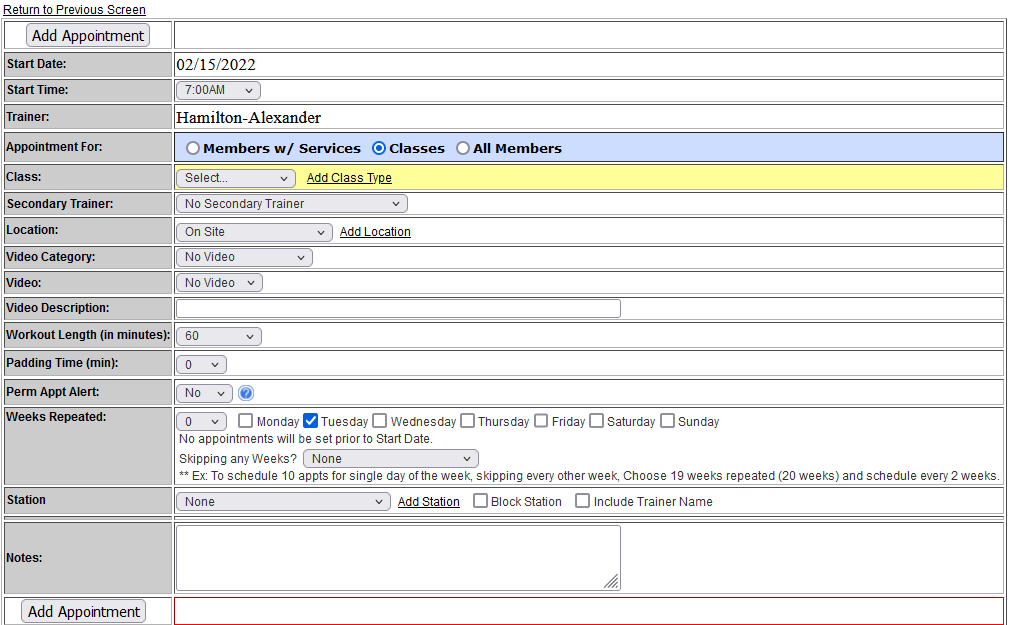
5. Select the correct class from the drop down menu in the yellow field for 'Class'.
6. Enter the capacity of the class.
7. Select a location (optional). To add new locations, click the link Add Location.
8. If this is a recurring class, select [yes] for Perm Appt and the number of repeating weeks. The Perm
alert report can be found under Reports -> Training -> Scheduled Perm Appts Running Out. The
report lists permanent appoints scheduled if the Last Scheduled Appointment is within the next
two (2) weeks. A Permanent Appointment will remain on the list for two weeks as a reminder
unless it is extended in the Scheduler.
9. Add any appropriate Class Notes.
10. Click [Add Appointment]
Comments
0 comments
Please sign in to leave a comment.