Section I - Scheduling the Appointment
If you have classes or Member appointments that you enter onto the calendar for an extended period of time, you can set the 'Perm Appt Alert' when you add the class or member appointment to the Scheduler. This will alert you two weeks before the appointment ends so that you can easily extend the appointment. You can also ignore the alert and let the appointment come to an end.
For example, you can schedule appointments up to 52 weeks in the year. The Perm Appt Alert will alert you 2 weeks before the year comes to an end to extend the appointments if needed.
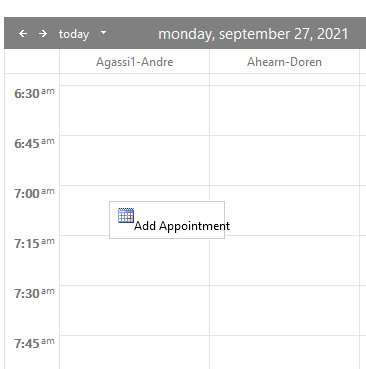
- On the Schedule Matrix, click into the first appointment date and time that the permanent appointment begins. For example, if the first appointment for the Member or class begins on Monday September 27th @ 7am, click into this timeslot under the appropriate Trainer.
- Select the 'Appointment For' from the blue section.
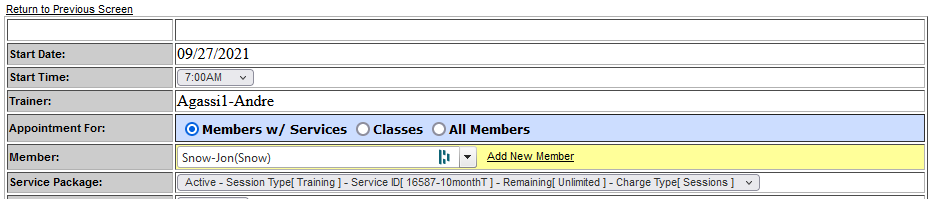
1. If it is a Member, begin typing their last name and select the Member from the drop down.
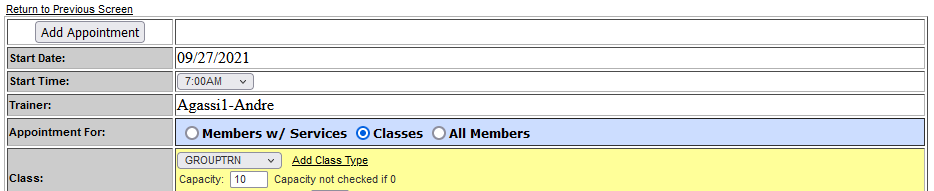
2. If it is a class, select Class, then select the class from the drop down in the yellow section.
- Just below the Workout Length, you will see 'Perm Appt Alert'. Select 'YES'

- Select the number of weeks from the 'Weeks Repeated' drop down.
- Select the days of the week.
- Click Add Appointment.
Section II - Extending the Appointment
1. From the Home Screen
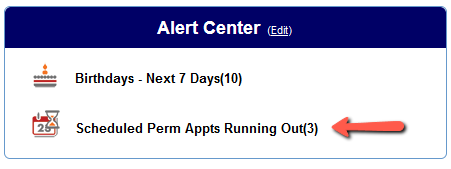
- Select 'Scheduled Permanent Appointments Running Out'
- In the Actions column on left, select 'Extend Appointment'.

- This report lists the the Permanent Appointments in the system that are running out, detailing a permanent appointment if the Last Scheduled Appointment is within the next two(2) weeks. A Permanent Appointment will remain on this list for two weeks as a reminder unless it is extended in the Scheduler.
**Notes on extending permanent appointments:
- All of the previous form field values should be selected EXCEPT for Weeks Repeated.
- The Date will default to 1 week from the Last Sched Appt for Date and Time listed on the Scheduled Permanent Appts Running Out report.
- Class registrants are not copied into extended class appointments and will need to be added manually.
2. From Training Reports (This will allow you to pro-actively manage/extend your future appointments)
- Reports -> Training -> Scheduled Permanent Appts Running Out
- In the actions sections on left, select 'Extend Appointment'
- Complete the information on the screen as needed
- Select add appointment
Comments
0 comments
Article is closed for comments.