FUNCTIONS -> CHECK-IN -> CLASS SELF CHECK-IN
The Class Self Check-in is a feature your members can use to check themselves into a class. They are really adding themselves into the class.
- The Class Self Check-in does not require the member to pre-register for classes but they must own a service package.
- If there is room in the class at the time the class begins, the member can add themselves into the class.
- Members can check-in until the capacity is met.
- The Class Self Check-in IS NOT the facility Check-in.
- This feature provides a more accurate head count for Class Attendance.
- You must provide member access to a computer or tablet to allow the check-ins.
How it works ~
- Before the start of classes, the Instructor opens up the Self Check-in screen from Functions -> Check-in -> Class Self Check-in.
- All of the classes being held in a 4 hour window block of time displays on the screen.
- The member selects the class they would like to take by clicking into the class.
- They start typing their last name and when they see their name, they will select it and the system will automatically check them into the class. They can also scan their Card ID or type it in.
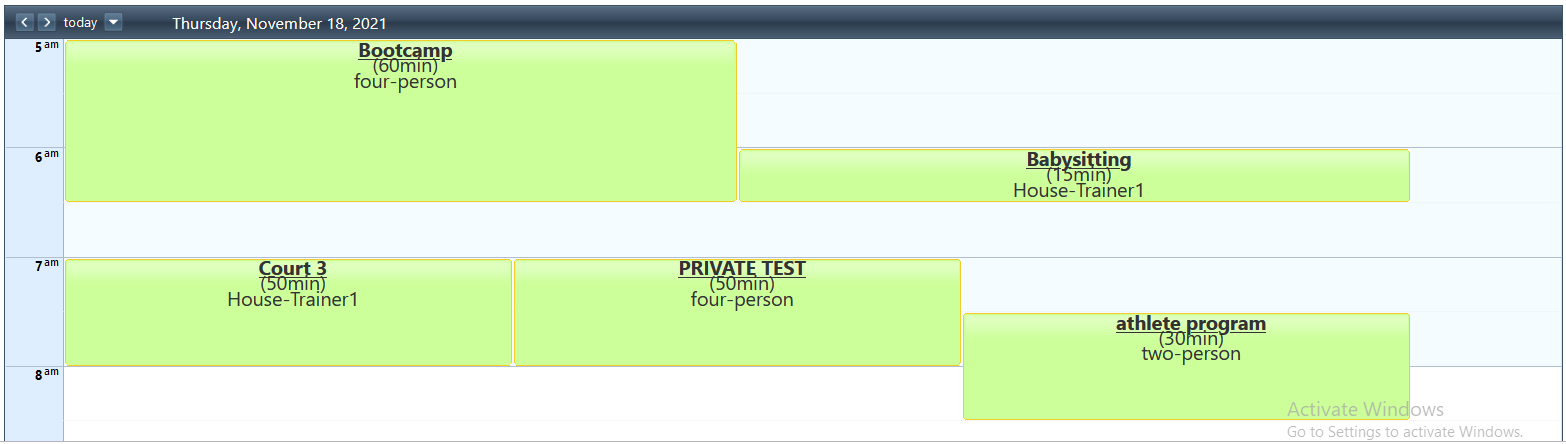
5. When capacity is met, no more names can be added to the class.
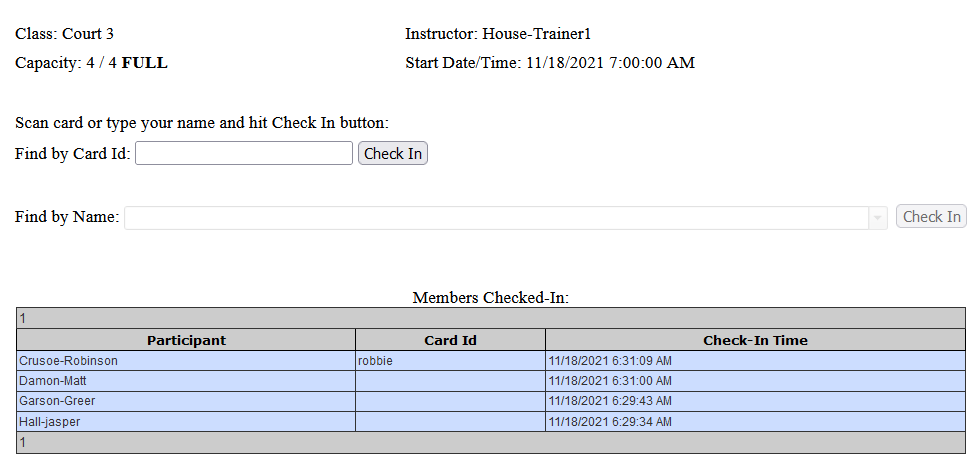
6. This feature can be used for classes scheduled on the Schedule Matrix as well as the Station Matrix.
7. Members added to classes this way have the same appointment completion options as members who pre-register.
Reports ~
- Class Attendance Report - Reports -> Misc/Stats -> Class Activity.This report displays the Class Type, Instructor and the number of registrants. There is also the ability to drill down into the class to view the members who took the class with their Check-in date and time.
**Use the system setting 'Daily Appointment Auto-Done' to DONE the appointments and deduct sessions. You can find this setting under Tools -> System Settings -> Scheduled Appointment Settings.
Comments
0 comments
Please sign in to leave a comment.