1. Add the Access Control Group details
Functions -> Check-in -> Access Control
Drop the selector down to 'Add Access Control Groups' and Select
- Enter a Group Name
The Group Name should be indicative of the hours allowed, such as Bankers Hours, Student Hours, Weekdays Only or Weekends Only
- Enter a description
- Select the location(s) where access is allowed
- Continue
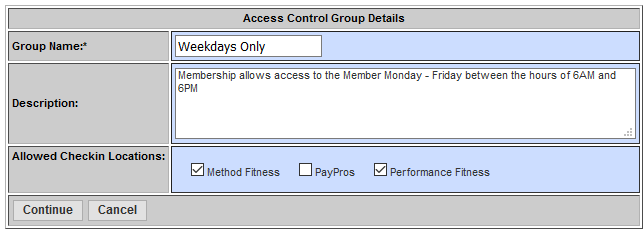
2. Enter the days and times access is allowed.
- Every day and hour is enabled by default

- Click each day to enter what time the Restriction begins and ends
- Add Restriction
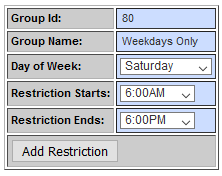
3. Once your Access Control Group has been defined, you can now attach it to your membership type. When you sell the membership, the club access will be automatically set up to control member check-ins
- Navigate to Quick Functions Memberships, then Quick Menu -> Types
- Click the Edit link next to the type you are adding the Access Control to
- Scroll down to Access Control Groups and select your new group from the drop down

Comments
0 comments
Please sign in to leave a comment.