In your Vimeo account:
After uploading the video, go to ‘General’ on the left of your screen
You can edit the title of the video if necessary. Otherwise, it will use the title used when it was saved to your computer.
*Note ~ You can add your Thumbnail image here if you wish. Click ‘Edit Thumbnail’, then ‘Upload’. You will upload the thumbnail image from Shape.
Under ‘Privacy’ and Who Can Watch, select ‘People With the Private Link’
Select ‘Specific Domains’ under ‘Where Can This Be Embedded?’
(Your domain is your ShapeNet URL- xxxx.cshape.net)
Next, go to ‘Embed’ on the left of your screen
Under ‘Actions’, I disabled ‘Share’ so the video cannot be shared to anyone
You may also want to disable ‘Show Vimeo Logo’ under Customization.
On top of your video, you see a video link and an ‘Embed Code’ box. Click the ‘Embed Code’ box
The URL to use in Shape is highlighted in this screenshot.
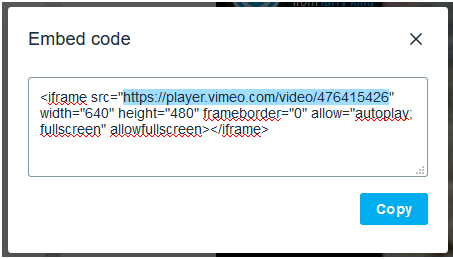
Copy and paste this part of the embed code into Shape and add the Thumbnail.
**NOTE ~ At this time, the only way to edit a thumbnail is to delete the video and add it back in as a new video.
Comments
0 comments
Please sign in to leave a comment.