You can revoke Brivo access for all members or for specific groups by using the 'Lockdown' feature in Brivo.
What is Lockdown?
The Lockdown feature allows an Administrator to quickly revoke access privileges from a large number of users, such as in an emergency situation. Lockdown can be activated for all users at all sites, or for only specific groups of users.
When activated, lockdown overrides all schedules, holidays and door timers. When it is de-activated, all schedules, holidays and effects return to their normal settings.
All lockdown activities are recorded in the Journal. Additionally, when an administrator puts an account into Lockdown for any reason, an email is sent to the email address that is in the Account section that was specified when the account was created.
Lockdown is considered de-activated only when all groups have been de-selected on the Lockdown page. If even one group remains selected, the schedules and holidays associated with that group are affected and all door timers are overridden.
|
|
NOTE: For Brivo Onair panels using firmware version 5.0.12 or higher, the Lockdown feature will now respond in near real time to changes. Wireless panels and panels with firmware version 5.0.11 or lower will continue to have access to the Lockdown feature, only without the near real time functionality. |

To activate lockdown:
Click on the Lockdown tab. The Lockdown page displays. 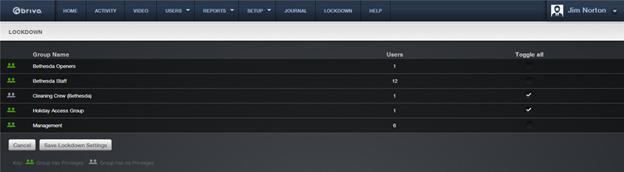
Figure 170. Activate Lockdown
To revoke access for individual groups, click the check-box (on the right side of the page) associated with each desired group.
To revoke access for all groups associated with all sites, click Toggle All.
Click Save Lockdown Settings. All access privileges associated with the selected groups are revoked within five minutes; no group member will be allowed entry or exit at any secured door.
To extend or retract lockdown:
Click on the Lockdown tab. The Lockdown page displays.
To extend lockdown to additional groups, click the check-boxes associated with those groups.
To retract lockdown from select groups, uncheck the box associated with the desired groups.
Click Save Lockdown Settings. All access privileges associated with the newly selected groups are instantly revoked and access privilege is restored to groups for whom lockdown has been retracted. Users affiliated with groups under lockdown will not be allowed entry or exit at any secured door.
To de-activate lockdown:
Click on the Lockdown tab. The Lockdown page displays.
If all groups are selected, click Toggle All to de-select them. If only some groups are selected, click Toggle All once to select all groups, and then click Toggle All again to de-select all groups.
Once all groups are de-selected, click Save Lockdown Settings. All access privileges are restored.
Comments
0 comments
Please sign in to leave a comment.