Adding an immediate Check-in.
-
- From your Quick Functions, click Checkin;
- Click 'SEARCH'. Start entering the last name of the member. When you see their name, select it.
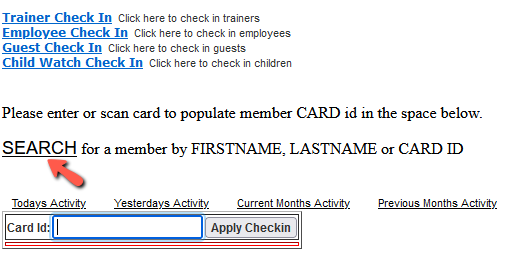
3. Under the Actions column, click APPLY CHECK-IN on the next page. The member's check-in will be documented in the system
with the current date and time.
Adding a Check-in later or the next day.
For those times when you get busy and are not able to apply an immediate check-in. Search for the member using steps 1 and 2 above.
1. Under the Actions column, click 'Manual Checkin'
2. Enter the date and time of the actual checkin;
3. Click 'Add Checkin' to record the timestamp.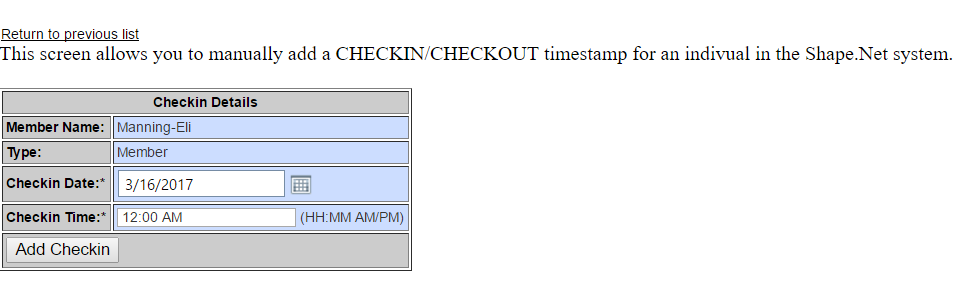
Comments
0 comments
Please sign in to leave a comment.