If you are using family or group memberships, you can link a specific secondary type to a primary membership type. This is useful if you sell multiple membership types. For example:
Family membership with $0 secondary
Family membership with $25 add-on
Military membership with $10 add-on
Discount membership with $5 add-on
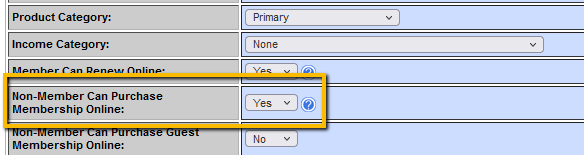
Each primary type will need to be created with the corresponding secondary type. This will prevent admins and members from selecting the wrong secondary type. For online sales, be sure that both types are set to 'non-member can purchase online: yes'.
In the primary type, select the secondary that needs to be linked in the details:
(Functions>>Memberships>>Types - edit type)
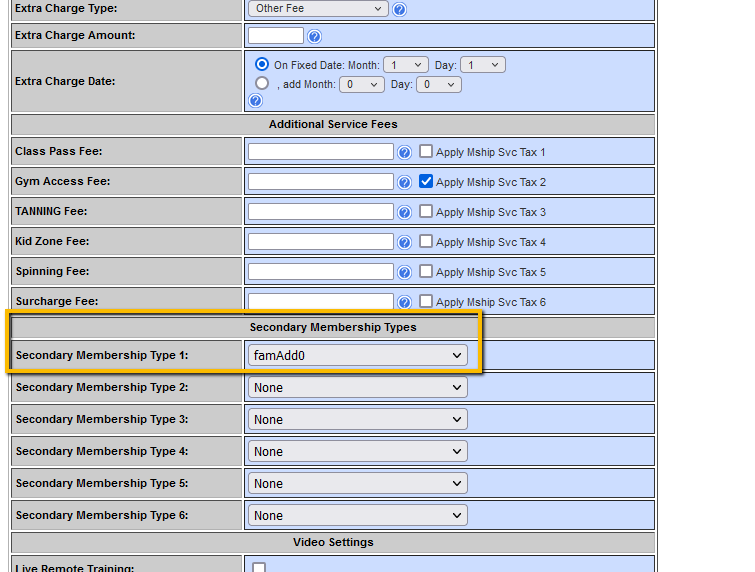
This means that the only secondary that can be used with this type are the ones selected here. Up to 6 can be added. On the member portal purchase side:
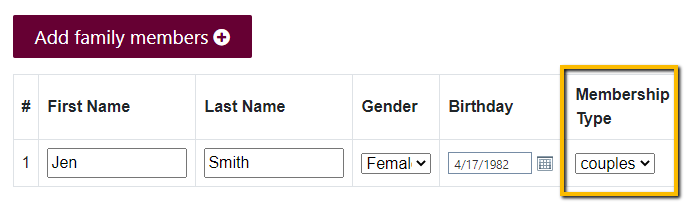
Expand 'add family members'. Membership type drop down will display secondary types that attached to this primary type:
Don't see the option to add family members? Email support@shapenetsoftware.com.
Don't see any secondary types in the drop down? Be sure both the primary and secondary type are set to sell online and the secondary is attached to the primary in the type details.
Comments
0 comments
Please sign in to leave a comment.