If you sell Family memberships, your members may need to add additional family to their Primary membership.
To add a Secondary to a Primary membership that is already in the system, you must first add the Secondary into Shape as a Member.
1. Quick Functions -> Add User.
Depending on the fields you have set as mandatory, enter the appropriate fields on the Member Details page and click the 'Save' button.
2. At the top of the Member Details form, click the icon for 'Purchase Membership'.

3. Select the Secondary or Add-on type membership.
4. Choose the Primary member by entering their last name into the 'Choose Primary Membership' field.
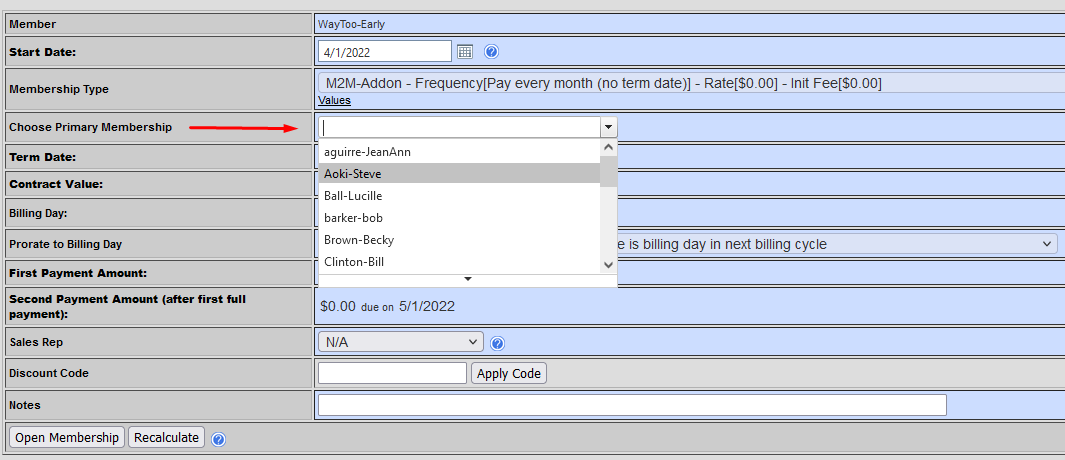
5. After you select the Primary, two check boxes will appear where you can copy the contact information from the Primary member's details and copy the Primary's billing information.
6. Click 'Open Membership'.
Comments
0 comments
Please sign in to leave a comment.