Understanding a Service Package in Shape
To find a service package that a member purchased, start from Quick Functions -> Services.
Enter the member's last name and Search.
**Note ~ The most optimal default search Filter is 'All Non-Closed packages - Active Member'. To set the default filter, go to Tools -> System Settings -> Other Settings and change Default Search Criteria Functions/Services/View Services to 'Non-Closed'.

1. Actions column. The actions that are available to the Administrator can be controlled through Security Settings.
- Add-ons. This is not the equivalent of a Secondary member. The Add-on feature gives the member the ability to share their package with another person. If 20 sessions are purchased, the member and their add-on can share the 20 sessions.
- Adjust Usage. Add, edit or remove restrictions on a package per member. If restrictions are added, edited or removed from a package type after a package has been purchased, IT WILL NOT apply to those packages. The restrictions will remain in as they were when the package was purchased. This link allows you to change the restrictions manually for each package.
- Billing Info. The member's Billing Info page.
- Cancel. This is equivalent to 'Closing' a package.
- Contact History. This link will take you to the member's Contact History.
- Delete. This link will delete the package. BE VERY CAREFUL before deleting a package. You will delete all transactions and package history and you CANNOT get it back.
- Document Locker. This Document Locker will have contracts assigned to the Service Category. You can view all signed documents, but will only be able to access service contracts when you Select Facility Document.
- Edit Service. You can edit the Start Date, End Date, Sessions Left, Auto Close Action, Assigned Trainer and scheduling beyond the close date.
- Freeze Service. Freeze a service package while keeping the member and membership active.
- History. View Transaction history and session history.
- Invoice. Download and send an invoice to a member with an open balance.
- Log Contact. Similar to Contact History, this link takes you directly to the form to enter a note in the member's Contact History page.
- Make Active. Shape can only have one Active package at a time. All other purchased packages are set to Pending. However, Pending in Shape is really Active. There is no difference between Active and Pending. You may want to use this link to make a package active for scheduling purposes. A Pending package can be scheduled, but you would prefer to use up the sessions on the active package first. You will only see this link on a Pending package.
- Member Details. This link takes you to the Member Details page.
- Payment. Use this link to take an open balance payment on the package.
- Purchases. View all purchases made by the member.
- Reverse Payment. Refund a payment made to a package.
- Scheduled Payments. If the package is monthly, view, edit or delete monthly scheduled payments.
- Send Email. Send an On Demand email to the member.
- Training History. View the Personal Training History and future appointments for the package.
2. Member Id. This is the member's Login ID.
3. Trainer Id. If a Trainer has been assigned to the Member on the Member Details page, it will appear here for all packages and future packages.
4. Package Status. The package can be Active, Pending, Suspended, Frozen or Closed.
5. Member Status. The member status can be Active, Inactive, Frozen, Phase 1 Collections, Phase 2 Collections
6. Service Id. The system generated Package ID followed by the package type.
7. Session Type. The session type assigned to the package type.
8. Sessions Total. The number of sessions purchased by the member. Can be edited under 'Edit Service' link in the Action column.
9. Sessions Left. The number of sessions left on the package. Can be edited under 'Edit Service' link in the Action column.
10.Last Session Date. The date of the last scheduled and completed appointment.
11.Initial Purchase Amount. If it is a Paid in Full package, it will display the full amount. Monthly packages will display the monthly rate.
12.Session Rate. The amount each session is worth for this package.
13.Scheduled Payment. Monthly packages will display the monthly rate, paid in full will display the full package price.
14.Open Balance. Any amount unpaid on the package.
15.Payment Frequency. Paid in Full, Pay Every Month or Pay as You go.
16.Start Date. The Start Date usually equals the Purchase Date. If the member already owns a paid in full package, the system will default the start date to be the end date of the previous package. The Start Date will determine payment date. If the system defaults the Start Date into the future, the bill date will also be in the future. The start date can be edited under 'Edit Service' link in the Action column.
17. Due Date. The Due Date is the calculated based on Term period used when creating the package (i.e., 1 day, 6 month, 12 months or No Term). No Term packages will be OPEN. With the exception of Open, the due date can be edited under 'Edit Service' link in the Action column.
18. End Date. This is the date the package closed.
19. Pay Method. There are two columns for Pay Method. The first Pay Method is the default Pay Method used for this member when payments are taken at the point of sale. This can be updated on the member's Billing Info page under ' Preferred POS Payment Method'.
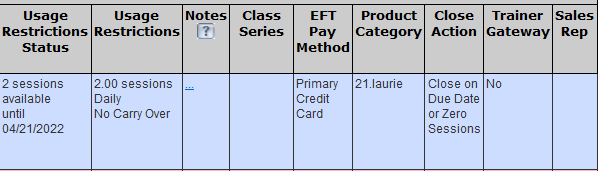
20. Usage Restrictions Status. If the package was created with Restrictions, this field displays the current status. This setting is used with -
21. Usage Restrictions. In this example, the member has 2 sessions available to use until the next reset date which is 4/21/2022. The package releases 2 sessions daily and do not carry over if not used. Both 20 and 21 can be updated, changed or removed using the 'Adjust Usage' link in the Actions column.
22. Notes. Add or update a note for this package. To add a note, click on the 3 dots.
23. Class Series. If this package is a part of a Class Series, the name of the Class Series will display here.
24. EFT Pay Method. The EFT preference for Monthly recurring packages. This can be edited under the Member's Billing Info page.
25. Product Category.
26. Close Action. The Auto-Close Action of the package. This can be changed using the 'Edit Service' link under the Actions column.
27. Trainer Gateway. This is no longer used.
28. Sales Rep. The Sales Rep selected when the package was purchased. If there is no Sales Rep, you can select one using the 'History' link for the package under the Actions column.
Comments
0 comments
Please sign in to leave a comment.