How to Cancel a Membership with Service Package(s) Attached
1. Cancel the Membership
Quick Functions -> Memberships. Enter the last name of your Member and Search
Hover over Membership Actions and click the 'Cancel' button to bring up the membership cancellation form;
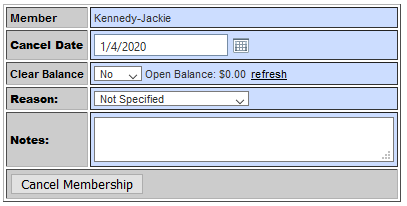
- Enter a cancel date. Use the current date for an immediate cancellation. Enter a date in the future for a 'Pending Cancel'. A Pending Cancel will auto cancel when the first Administrator logs into the system.
- Clear Balance YES/NO: **Unless your member is being sent to Collections or they must make a last payment, select 'YES'.
- Select a cancel reason. **Add some cancel reasons. In the drop down menu, select <add new> to enter cancel reasons. You can use the Membership Cancel Report to study the reasons why your members cancel and work on ways to improve your churn rate.
- Enter any notes or Admin initials
- Click 'Cancel Membership'
______________________________________________________________________________________________________
2. Cancel the Service Package(s).
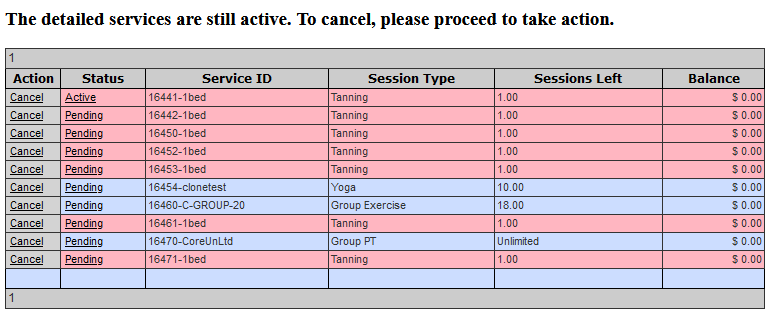
If there are any Active or Pending service packages attached to the membership, they will be listed on the following screen.
Services Packages must be dealt with.
**IMPORTANT ~ If you leave an balance on the membership, you run the risk of accidentally charging the member through the EFT draft. The EFT draft is created using the MEMBER status, not the Membership Status. If you leave the Service Packages open, the Member status remains Active and the Membership's Scheduled Payment can still be pulled into the draft if it's Pay Date is within the date range.
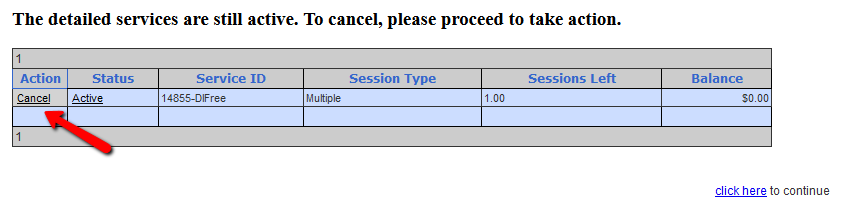
If the member owns more than one package, all of their packages will be listed and must be handled.
The next page brings up the Service Package cancellation form.
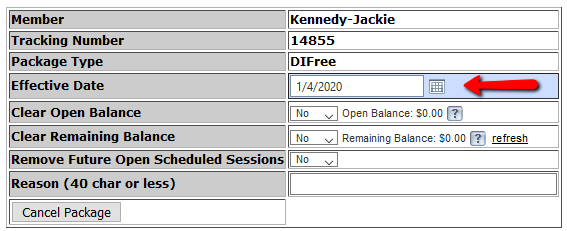
- Enter the cancellation date in the 'Effective Date' field. Use the current date for an immediate cancellation. Enter a date in the future for a 'pending cancel', but generally the date should be the same as the Membership cancellation date.
- For a Free Class package, 'Clear Open Balance' and 'Clear Remaining Balance' will be $0.00. These two settings remain 'No'.
- If the member has any class Appointments on the calendar, you can remove future appointments by selecting 'Yes'. If you do not know, you can still select 'Yes'.
- Enter a reason or your initials.
- Click 'Cancel Package'.
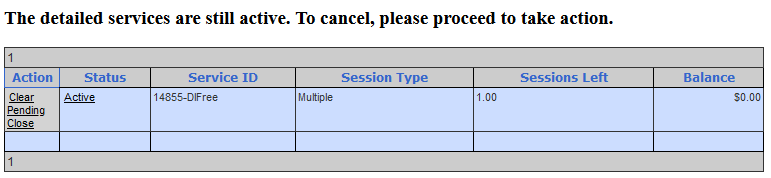
The next screen confirms the 'Pending Cancel' if the Cancel date is in the future.
Click to Continue. You will be taken back to the Membership. For an immediate cancellation, the Member Status AND Membership status will be Inactive.
3. Email a Cancellation notification to the member.

Comments
0 comments
Please sign in to leave a comment.