Add Payee to your System as a Vendor
- Go to Quick Functions-> Add User
- User Type = Vendor
- Enter a company name and display name
- Enter a first and last name (optional)
- Select gender (optional)
- Enter address and contact information
- Click [Save]
Create and Apply Payment for an Expense
- Go to Functions-> Expenses-> Expenses
- Click the
 icon in the upper left corner.
 - Select the [Payee] you added in the step above from the drop down menu
- Enter a [Due Date] and an [Amount]
- To simultaneously create and apply payment for an expense, check the box to the right of [Create AND Apply Payment]. **Note: This ONLY tracks money being paid; NO money is ever moved from Shape. Also, if you only want to add an expense without taking a payment, do not check the box to [Create AND Apply Payment]. This will allow you to take a partial payment as well.
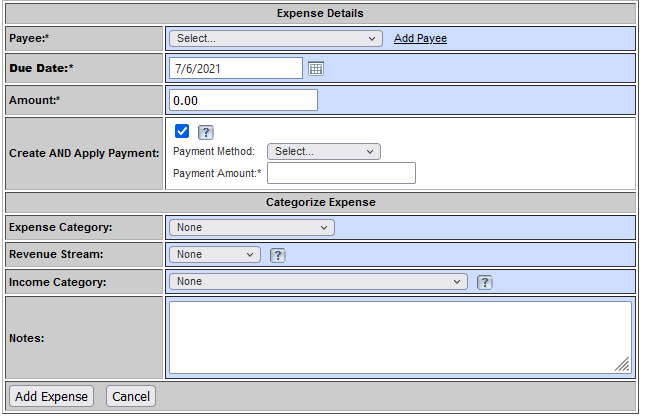
- Enter a payment method and amount.
- Select or [Add New] expense category
- Click [Add Expense]
Comments
0 comments
Please sign in to leave a comment.