The old-fashioned way ~
You can create an e-mail template that you can use repeatedly or as a drip e-mail.
- Functions -> Marketing -> E-mail
- Use Dropdown to select "Add E-mail Template"
- Click 'Select'
- Enter an E-mail description, give the e-mail a title (the client will not see this)
- Subject, normal e-mail subject line (the client will see this)
- E-mail text, normal e-mail text or;
- Use HTML to customize
- Click continue, this will save the e-mail.
- Click on the 'Preview' link at any time to verify your work. This is always helpful if you are adding URL links to ensure the html has been added properly.
Using Clean HTML to convert text:
If you simply need to change text to HTML, copy and paste your text into this site:
Convert, and copy back into Shape.
Using Mail Chimp ~
Navigate to https://mailchimp.com/ and create a free account.
From the menu on the left, select 'Campaigns', then select 'Email Templates'.
Click the button on the top right 'Create Template'.

1. First, select your layout or theme. There are only a few to choose from with the free account, but enough to create an impactful email. (You can upgrade your Mail Chimp account to access more selections.)
2. Start creating your email. You can use their 'Help' function for guidance.
3. Preview and Test the email. When satisfied, Save and Exit (located in the bottom right of the screen).
4. This will take you to your Template Library. For the template you need to copy to Shape, use the 'Edit' drop down arrow and select 'Export to HTML'.
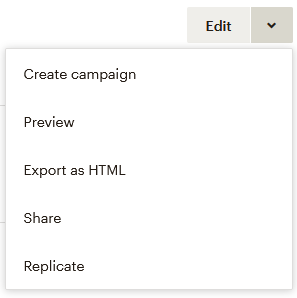
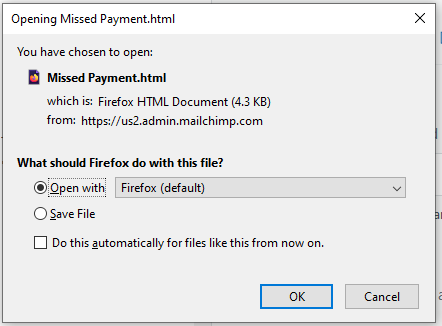
5. Click 'Export Template'. You will receive a pop-up message asking where you would like to open the template. The default should be the browser that you are currently using. Click 'OK' to open in the browser.
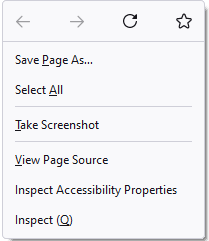
6. Right click anywhere on the page to bring up a command window. Select 'View Page Source'.
7. Place your cursor in front of the first bit of code and pull all the way down to select the entire code. Copy the code.
8. Follow the steps above to paste your code into a new Email template in Shape.
Comments
0 comments
Please sign in to leave a comment.