Jump Start Your Marketing Strategies with QR Codes
QR (Quick Response) Codes can be used to promote interaction and engagement through a mobile device. The purpose of QR Codes is to transfer a lot of information to the user in an instant quickly. Adding a Call to Action (CTA) to your QR Codes is intended to prompt an immediate response or encourage an immediate sale. Examples of CTAs on QR Codes are 'Scan Me', 'Buy Now', Sign-up Here', 'Contact Us', etc.
You can create QR codes anytime and insert them in an email, newsletter, Website, Social Media page and even at your Front Desk on a poster board.
There are many free QR Code generators available online. Connect to your favorite site to generate the code. Here are just a few websites to choose from:
https://www.qrcode-monkey.com/
https://www.the-qrcode-generator.com/
https://www.beaconstac.com/qr-code-generator
Generate QR codes in 3 easy steps:
1. Select the type of QR code you are generating from URL, vCard (Virtual Business Card), Plain Text, Email, SMS, Twitter, WiFi, and Bitcoin.
2. Depending on which type you select, different fields will appear. Fill in the information for the fields. This could be a link, contact information, text or any other type of info.
3. Generate the QR code. Download the code. You can download the code in the traditional black and white or some QR code generator sites give you the ability to customize the QR code with colors or your logo.
QR code types:
URL: Use this type to open a link to a webpage, contact form or YouTube. Use this type to sell your memberships and services using a smartphone.
vCard: Use this type to create a digital business card with a 'save to phone' feature.
Plain text: Use this type to display text in any language up to 300 characters.
SMS: Use this type to send a pre-defined text message to any phone number.
Email: Use this type to send a pre-defined message to any email address.
WiFi: Use this type to connect to a WiFi network without having to type the password.
Twitter: Use this type to post a tweet, complete with a link and #hashtags.
Bitcoin: Use this type to request crypto payments from major cryptocurrencies.
Creating the QR Code:
I am using https://www.qrcode-monkey.com/ to create the QR codes for this article. The type will be URL.
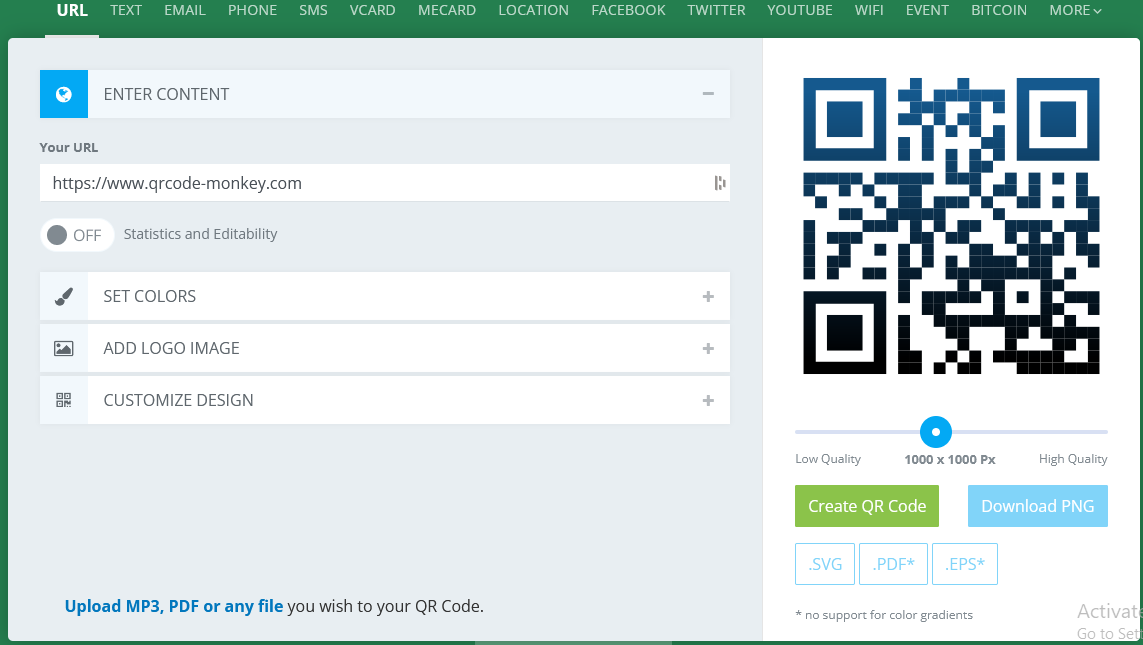
1. Enter the URL for the product you wish to sell or send your members to for example, you may wish to send members to the Apple store or Google Playstore to download your Mobile App. Enter the location URL in the store - https://apps.apple.com/us/app/method-fitness/id1240164061
2. You can change the colors of the QR code to match those of your facility.
3. Upload your logo. The placement will sit directly in the middle of the code.
4. Customize the Design. The code no longer has be be a simple square design anymore.
5. Click 'Create QR Code'.
6. Download PNG.
Using the QR Code:
1. After the code has downloaded, you can print the code and display it at your front desk.
2. Copy the code to use in emails, newsletters and flyers. Print to use at the Front Desk or Message Boards. Add them to Business Cards. Upload them to your Website, Facebook, Twitter, Pinterest and other social media.
Comments
0 comments
Please sign in to leave a comment.