Internet Explorer  Microsoft Edge
For clients who use a Receipt Printer or Signature Pad, you must use Internet Explorer's browser because the hardware uses the Active X controls under its Security settings. The IE browser will no longer be supported by Microsoft very soon - June 2022. Microsoft Edge has developed a file extension that emulates Internet Explorer. The instructions below are for downloading the IE file emulator on your browser.
* Note~ Internet Explorer must be downloaded to your desktop.
Getting Started with Microsoft Edge
Microsoft created Internet Explorer (IE) mode in Microsoft Edge for organizations that still need Internet Explorer 11 for backward compatibility with existing websites but also need a modern browser. This feature makes it easier for organizations to use one browser, for legacy web/apps or for a modern web/app. This article provides an introduction to using Microsoft Edge with IE mode.
What is IE mode?
IE mode on Microsoft Edge makes it easy to use all of the sites your organization needs in a single browser. It uses the integrated Chromium engine for modern sites, and it uses the Trident MSHTML engine from Internet Explorer 11 (IE11) for legacy sites.
When a site loads in IE mode, the IE logo indicator displays on the left side of navigation bar. You can click the IE logo indicator to display additional information, as shown:
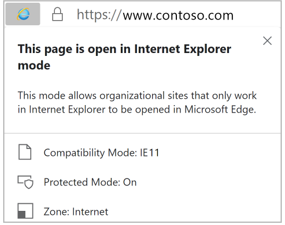
Only those sites that you specifically configure (via policy) will use IE mode, all other sites will be rendered as modern web sites. For a site to use IE mode, you need to either:
- List the site in the Enterprise Mode Site List XML defined in one of these policies:
- Microsoft Edge 78 or later, "Configure the Enterprise Mode Site List"
- Internet Explorer, "Use the Enterprise Mode IE website list"
Steps to Set Up Internet Explorer mode in Microsoft Edge
Some sites are built to work with Internet Explorer and have functionality that isn't supported by modern browsers such as Microsoft Edge. If you need to view one of these sites, you can use Internet Explorer Mode in Microsoft Edge.
Most sites work better on modern browsers. For better speed and security, we recommend only using Internet Explorer mode when necessary. For more information, see Learn More about Microsoft Edge.
To turn on Internet Explorer mode, use the following steps.
-
In the address bar for Microsoft Edge, type edge://settings/defaultbrowser and then click Enter.
-
Slide the Allow sites to be reloaded in Internet Explorer toggle to ON.
-
Restart Microsoft Edge.
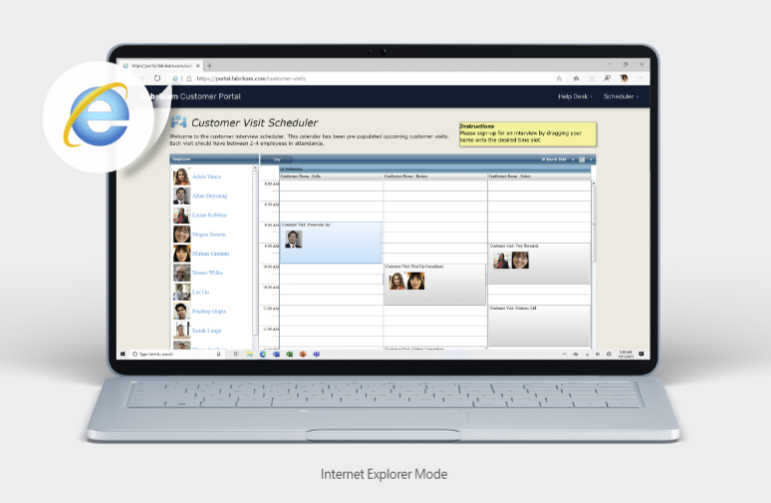
Internet Explorer mode is now enabled. To view a website using Internet Explorer mode in Microsoft Edge, use the following steps.
-
Navigate to the website you want to view in Internet Explorer mode.
-
Click the three dots in the upper right corner of the browser window.
-
Select Reload in Internet Explorer Mode.
If you are on Microsoft Edge version 92 or earlier select More tools > Reload in Internet Explorer Mode
**To return to browsing without Internet Explorer mode, you can click Leave on the information bar at the top of the screen, or close your current tab and open a new tab in Microsoft Edge.
NOTE: If you are on a device managed by your organization with the latest Windows updates, you will see the option to Allow sites to be reloaded in Internet Explorer under edge://settings/defaultbrowser but the setting might be greyed out. On a managed device, you will see the option Reload in Internet Explorer mode ONLY if your organization has configured the policy to "Allow unconfigured sites to be reloaded in Internet Explorer mode". See Microsoft Edge Browser Policy Documentation | Microsoft Docs.
These links discuss Internet Explorer mode in the Microsoft Edge browser:
Comments
0 comments
Article is closed for comments.