Create a Video Administrator in Shape
An Administrator log in is required to access the Video on Demand service. Add a new Administrator to Shape that is used for logging into the Video on Demand service only.
- Quick Functions -> Add User
- Change the User Type to 'Administrator'
- Enter a First Name and Last Name indicative of its use for the Video on Demand service, ie., Video-OnDemand. DO NOT SELECT A SECURITY TEMPLATE at this time.
- Once saved, click the link for 'Security'. Expand FUNCTIONS. Expand MEMBER_WEB_ACCESS. Enable the Security setting for VIEW_VIDEOS.
- Save the template.
Update the Video on Demand Administrator Password
- Log into the Video on Demand Portal using the Administrator just created but first, update the password to a temporary password (ex. temp1234)
- When you log in, you will be directed to change the password. DO NOT SHARE THE PASSWORD WITH YOUR MEMBERS.
AirPlay video from your iPad
- Connect your iOS device to the same Wi-Fi network as your Apple TV or AirPlay 2-compatible smart TV.
- Go to the Apple Store on your iPad device.
- Look for ShapeNet Fitness Videos and download the app.
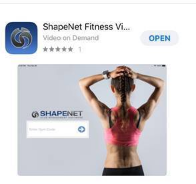
- Add your gymcode (provided to you by Shapenet) in this format - Gymxxxxx
- Login with the Administrator created for Video Log ins.
- Members simply wake up the iPad and search the videos and play.
Note** ~ The password must be entered to log out. The app will always be accessible for your members with the need to log in. The app remains logged in until the password is used.
Viewing the videos from your HDTV.
- Tap
 In some third-party apps, you might need to tap a different icon first.
 - Choose your Apple TV or AirPlay 2-compatible smart TV
Note** ~ If video automatically streams to an AirPlay device
Your iOS device might automatically AirPlay video to the Apple TV or AirPlay 2-compatible smart TV that you frequently use. If you open a video app and see  in the upper-left corner, then an AirPlay device is already selected.
To use AirPlay with a different device, tap, then tap another device
Comments
0 comments
Article is closed for comments.