When you receive a 404 error, it is because ShapeNet blocks public IPs that are associated with computers attempting to bypass the login (authentication) process. This mechanism prevents unauthorized access to your ShapeNet system.
The most common reason for blocked IPs is that someone is attempting to access an internal ShapeNet page directly from a URL shortcut (bookmark) to the internal page. The ShapeNet system interprets this as an attempt to circumvent the authentication process and will block the public IP. This could be happening from any computer on the LAN that uses a common public IP.
You should only attempt to access the ShapeNet system from the login page: https://yourshapeURL.cshape.net. It's safe to create shortcuts (bookmarks) to this page, but no others since direct attempts to access internal pages will result in your public IP getting blocked by the ShapeNet system.
For example, if you try to start here instead - https://yourshapeURL.cshape.netSched/ScheduleMatrix2015.aspx - without being logged in, it sees it as illegal.
Adding the IPs to the whitelist marks them as exempt from suspicious activity.
It won't prevent these messages if you are attempting to access Shape using a saved URL but it will prevent you from being blocked out if you always accessing shape from the login URL.
How to whitelist an IP address in Shape
To find the IP address to whitelist, navigate to Reports -> Audit -> System Audit Trail
Look for the records records where the Function is SECURITY and the Sub-Function is ILLEGAL_ACCESS. They will be red and hard to miss.

Copy the IP address.
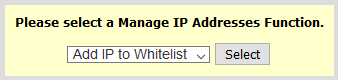
Next, go to Tools -> Security -> Manage IP Addresses
Select 'Add IP Address'
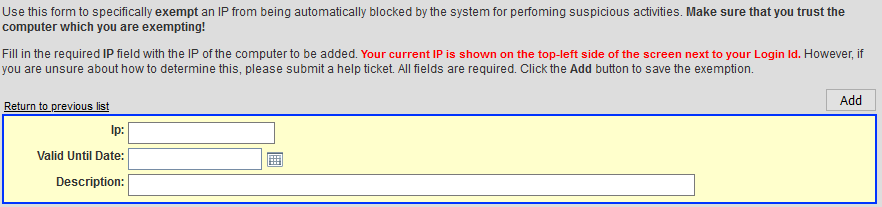
Paste the IP address into the IP field
Enter a 'Valid Until Date'
Enter a short description the computer, i.e., 'Joe's laptop'.
Click 'Add'
The Administrator who was locked out, should now be able to log back in.
Comments
0 comments
Article is closed for comments.