- Memberships and Packages are purchased before payment, to leave these as open balance - do not apply a payment
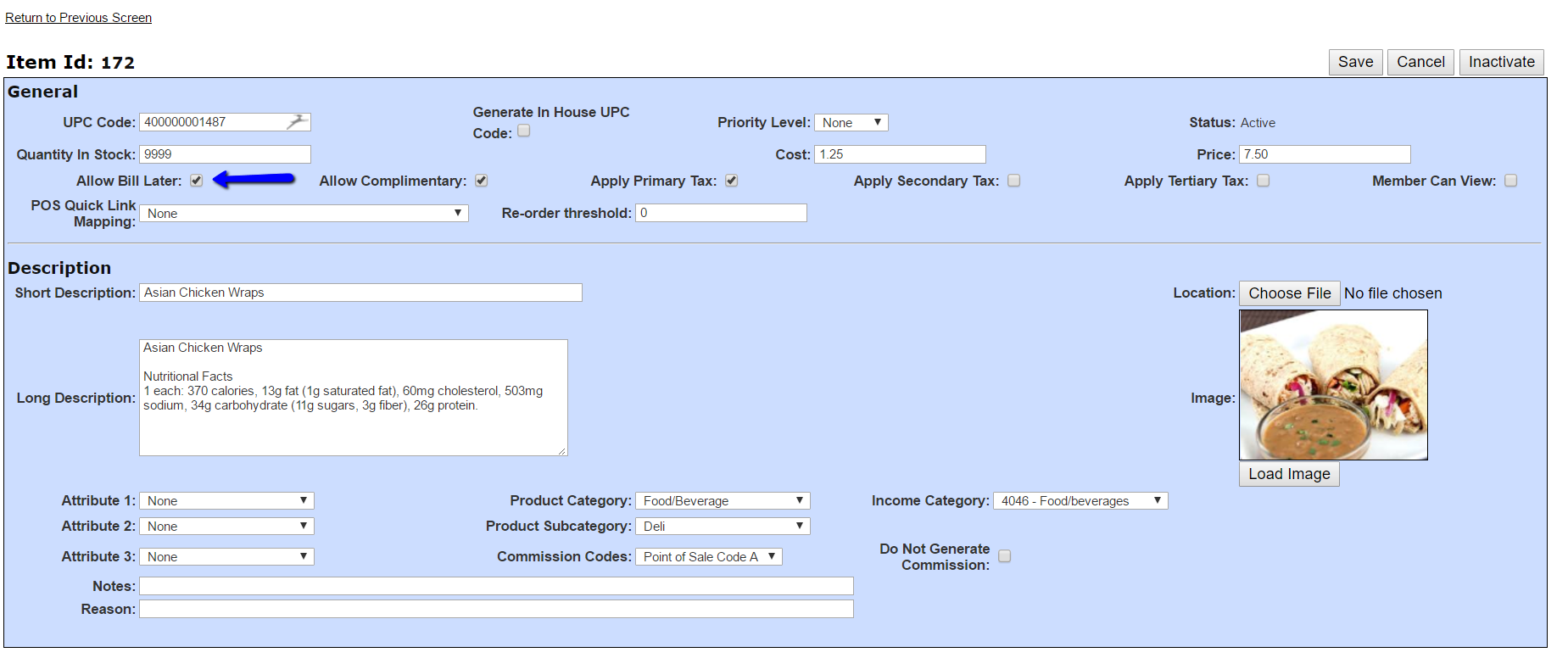
- POS items can be put 'on-account', but the product needs to have that option checked on its description page
To do this...
- Functions - > Point of Sale -> Product List
- Find the desired product
- From the Actions column, click the Edit link
- Find and enable the "Allow Bill Later" box
- click Save
Purchase the item normally...
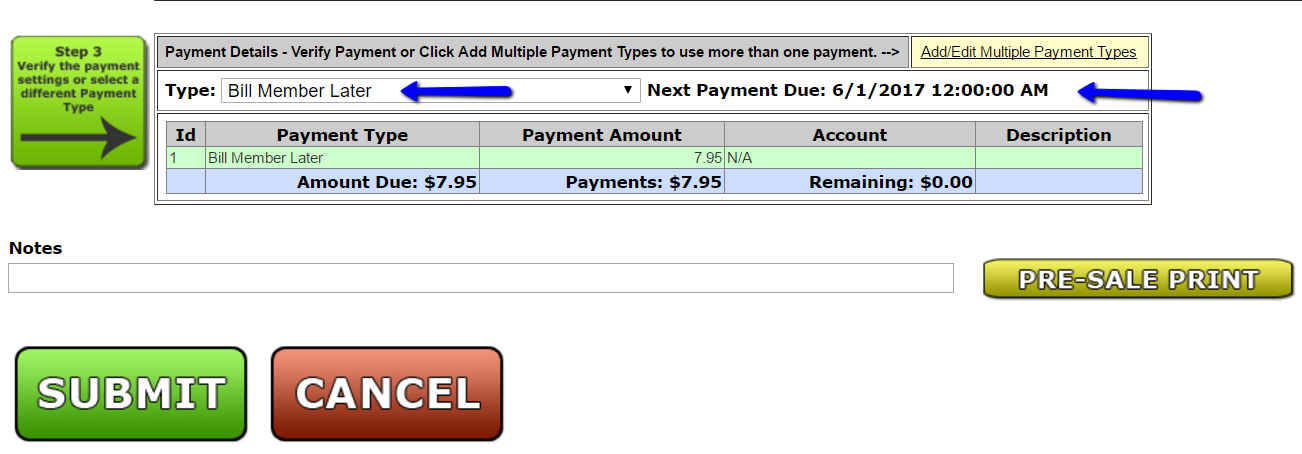
- After Selecting Member
- Choose Payment Method 'Bill Member Later'
3. Click Submit
***NOTE - To push the Next Bill Date to the 1st of the upcoming month, go to Tools -> System Settings -> Other Settings. "POS Check out, default to TODAY for BILL MEMBER LATER option:" should be disabled. If enabled, the due date will be the date the item is purchased.
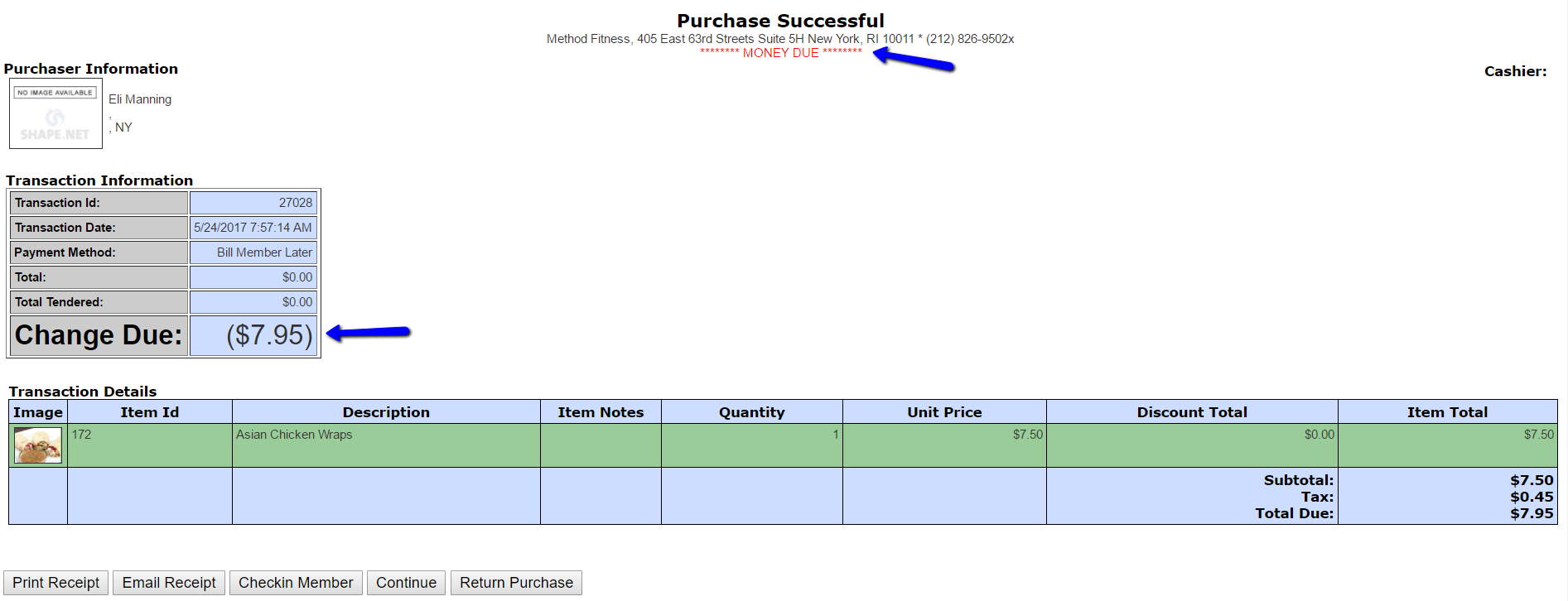
Your purchase will be successful, with 'Money Due'.
To Bill Later...
- Financial Transations
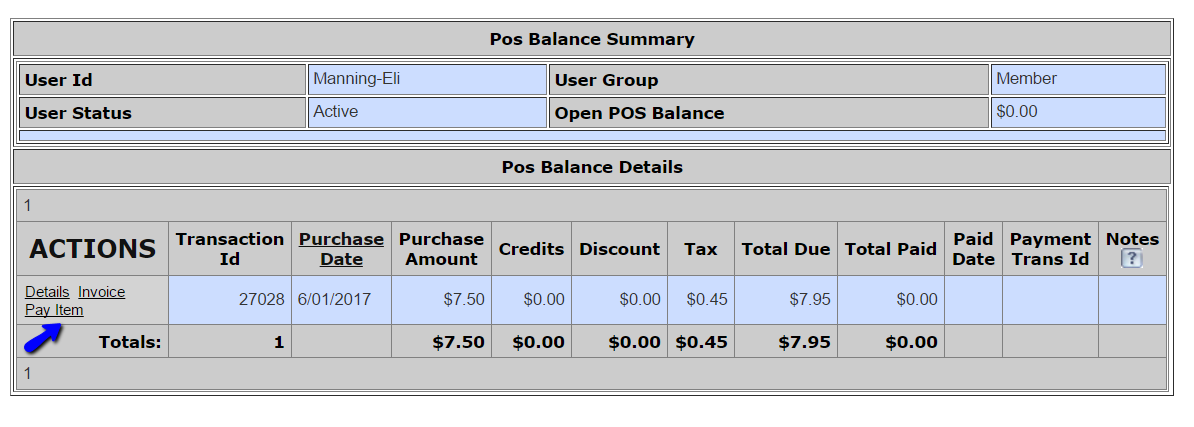
- Reports -> Financial -> Open Balances (POS)
- Use Quick Pay link in the Actions column to pay any balance
- POS Credit Manager
1. Quick Functions -> View Members, enter Member's name and 'Search'
2. In the 'Actions' column, click the POS Credit Manager link
3. Click the 'Pay Item' link
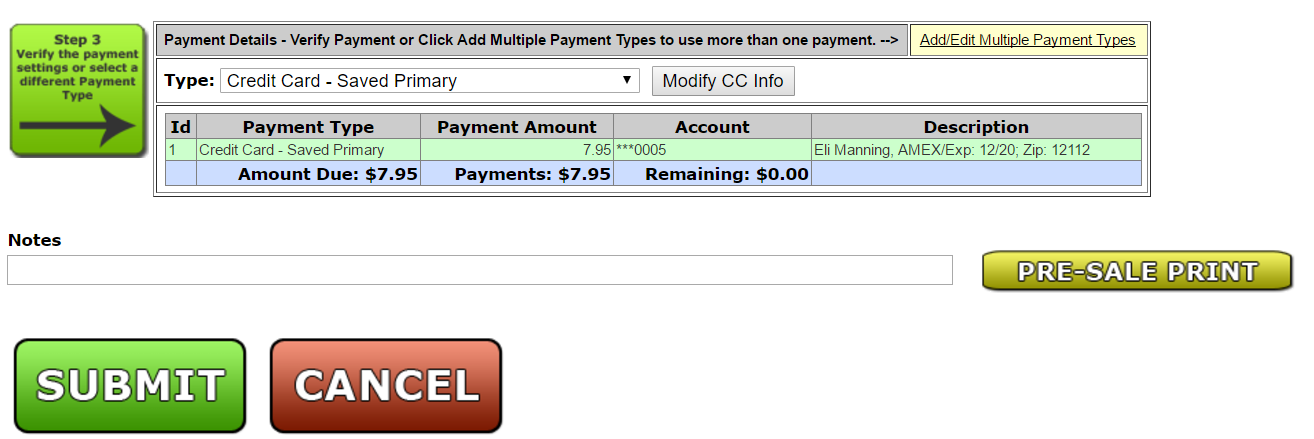
4. Pay for the item as normal
***NOTE - Only POS items purchased on credit will display in the POS Credit Manager.
- From EFT
1. Functions -> EFT -> Create Batch
2. Create your batch as normal. The 'Category' will be COUNTER or COMBINED
Comments
0 comments
Please sign in to leave a comment.