New for 2022 - The Program Class Series is now available for non-member purchase!
Program Class Series Introduction ~
This function allows you to create a group of classes called a Program or Class Series. A program is comprised of (and requires) a single class type and single service type. The Program has a Specified Start Date and End Date and functions as a unit. Members purchase the program as whole and are added to the class schedule.
Note** ~ If you also offer the Class Type as a regular class offered throughout the year, create a separate Class Type apart from the Class Type created for the Program Series.
Example: Creating a Bootcamp Program
1. Create Class Type: Navigate to Functions > Classes > Add Type and create a NORMAL class type called Bootcamp.
2. Create Service Type: Navigate to Functions > Services > Add Type and create a bootcamp service type. Limit Scheduling of this service type to Certain Classes Only and select the Bootcamp class created in step 1.
The number of sessions will not matter since this will be overridden at purchase based on the number of classes in the program. Pricing will also be overridden at purchase.
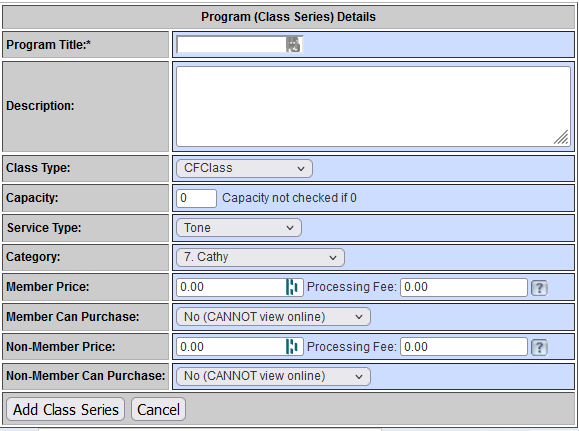
3. Create the Program: Navigate to Functions > Classes > Programs and select Add Program from the dropdown.
- Choose a title (ex: Bootcamp - Fall 2010), enter a worthy description.
- Select the Bootcamp class type from the dropdown.
- Enter a capacity.
- Select the Service Type created for the Series.
- You can select a Category, but it's not necessary.
- Enter a Member price and select online purchase availability.
- Now you can enter a Non-Member price and select its online availability.
- Click 'Add Class Series'. You have just created a Program with a status of PENDING.
4. Add Classes to Program: From the View Programs (Class Series) page, click the 'Manage Schedule' link to set up your class schedule.

On that page, add classes to the program and then Save the program. The classes will be entered to the Schedule Matrix.
- Select the Trainer/Instructor for the series.
- Enter the first day the series begins.
- Enter the time.
- Enter the class length.
- Enter the Session Type.
- Select the number of weeks for the class in this series.
- Check off the days of the week.
- Click 'Add Program'.

5. If there are no conflicts, you will be able to Save the Program Schedule. You can remove any class needed to account for holidays etc.
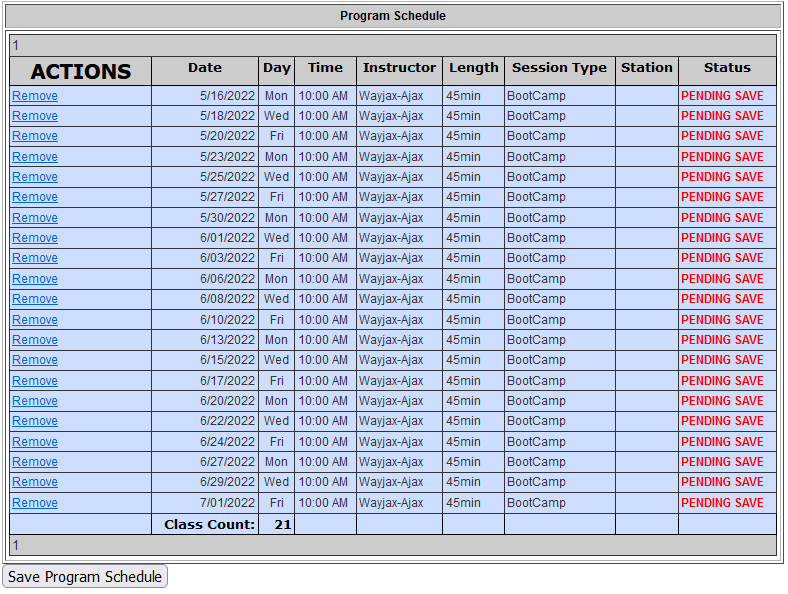
6. Activate the Program: Once the schedule has been created, you need to edit the program and make it ACTIVATE. Only then will your clients be able to buy it.
**Review the detailed PDF for additional instructions on purchasing the series**
Comments
0 comments
Article is closed for comments.